
A Salesforce admin opens a record, changes a field, and saves it. A few seconds later, the field changes back. The record history shows several updates, and nobody can immediately explain which automation caused them. Problems like these often begin when too many independent flows run on the same object. Salesforce Flow Builder gives administrators the tools to manage this complexity, but the automation needs a clear structure. Salesforce administration services help organizations review existing flows, resolve overlapping logic, and maintain reliable CRM operations.
Why too many Salesforce flows on one object cause problems
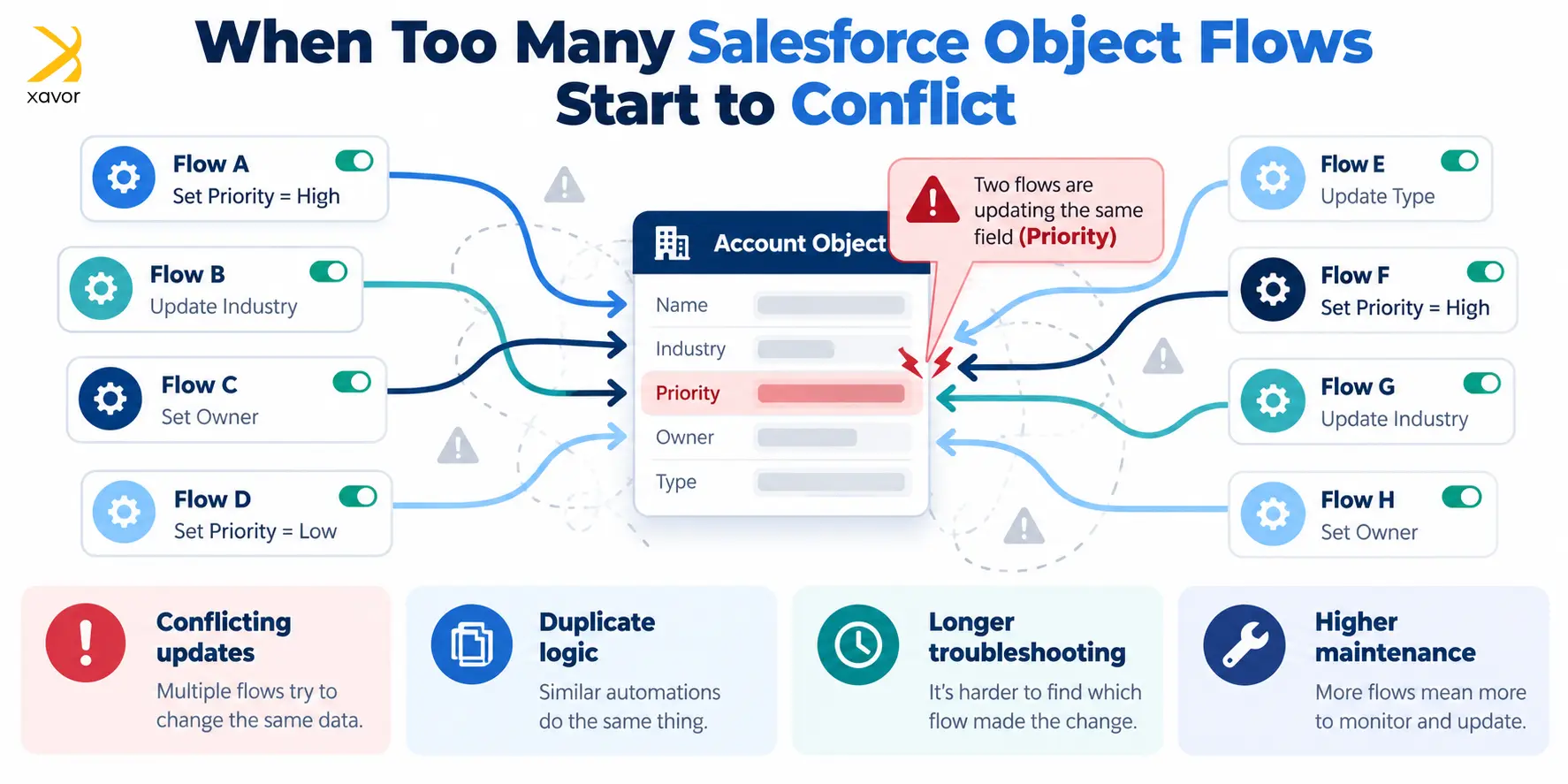
Multiple record-triggered flows can cause maintenance problems when they update the same fields, repeat business rules, or depend on one another. Salesforce supports multiple flows on an object and allows admins to configure their execution order. However, each additional flow creates another place where administrators must check for conflicting conditions and unexpected updates.
Consider an Account object with 11 active record-triggered flows. One assigns an account owner, another checks the customer category, and several others manage notifications or update related records.
A new requirement arrives, so an administrator creates another flow to update the account’s priority. Unfortunately, an existing flow also changes that field under slightly different conditions.
Now, a user changes the priority manually, and the automation reverses the change during processing.
The problem becomes harder to diagnose because several flows may run during the same transaction. Common consequences include:
- Conflicting updates when different flows modify the same field.
- Duplicate processing when similar business rules exist in multiple flows.
- Longer troubleshooting because administrators must inspect several automation paths.
- Greater maintenance effort when changing one rule requires updates in several places.
Salesforce provides Flow Trigger Explorer to help administrators inspect and manage these flows. It also supports configuring their execution order, so multiple flows are not inherently unpredictable.
However, controlling the run order alone may leave duplicate business logic scattered across the object.
Organizing Salesforce Flow Builder around four main flows
A four-flow architecture separates record creation from record updates and divides each operation into before-save and after-save processing. Each main flow handles a specific operation type. Before-save flows manage changes to the triggering record, while after-save flows coordinate work involving related records or other supported actions.
For an Account object, the structure can look like this:
| Main flow | Responsibility | Example |
| Account – Create – Before Save | Set fields during record creation | Populate an initial customer category |
| Account – Create – After Save | Perform actions after creating a record | Create related onboarding tasks |
| Account – Update – Before Save | Update fields on an existing record | Recalculate priority when account details change |
| Account – Update – After Save | Run actions following record updates | Notify the account team after reassignment |
This structure means an administrator reviewing Account updates can begin with two main flows instead of searching through numerous independent flows.
The four-flow approach is an architectural convention, not a Salesforce platform requirement. Some objects need fewer flows, while others benefit from separate flows with explicitly configured trigger order.
Before-save vs after-save flows differ
Before-save flows run during record processing and are designed to update fields on the record that triggered the automation. Since those changes become part of the existing save operation, Salesforce does not need an additional record update for those assignments.
For example, an admin can configure a before-save flow to calculate an Account’s priority based on its customer category and assign the resulting value to the triggering record.
After-save flows support a broader range of actions. They can update related records, launch supported subflows, or initiate follow-up processing.
Salesforce documents the element restrictions for these flow types in its Flow Types reference.
| Capability | Before-save flow | After-save flow |
| Change triggering-record fields | Yes, using assignments | Yes, through an additional update |
| Update related records | No | Yes |
| Call subflows | No | Yes |
| Supported elements | Assignment, Decision, Get Records, Loop | Broader action and data element support |
| Typical purpose | Field calculations and same-record changes | Related-record processing and follow-up actions |
Salesforce admins should generally handle straightforward same-record field changes before the save. Updating the same record again from an after-save flow creates extra database work and may start another automation cycle.
The role of main flows and reusable subflows
Main flows determine when business logic should execute, while subflows contain the steps required to complete individual operations. This arrangement allows administrators to reuse business logic across different automation paths and maintain it in one place.
For example, suppose an Account requires additional processing when its customer status becomes Active.
Workflow automation can also extend beyond Salesforce records. In one project, Xavor connected Salesforce with Slack to simplify approvals and keep teams informed about record changes. Read the Salesforce and Slack integration case study to see how this worked in practice.
The Account – Update – After Save flow can first check whether the status has changed. If the condition is met, it calls a customer-processing subflow.
That subflow might retrieve relevant account details, check whether an onboarding task already exists, and create the task when required.
The main flow remains responsible for the triggering condition and the order of execution. The subflow handles the customer-processing steps.
When should administrators create reusable subflows?
Subflows are particularly useful when the same operation is required by multiple processes.
For example, customer-processing logic might run after creating a new Account and again when an existing Account reaches a qualifying status.
An administrator can call the same autolaunched subflow from both after-save flows, provided the subflow receives the inputs required for each situation.
Good subflow design also requires clearly defined inputs and outputs. If the subflow expects an Account ID, the calling flow should supply it explicitly. Administrators should document how the subflow handles missing records and errors.
Before-save flows cannot call subflows, so their decision logic and field assignments must remain within the supported elements.
Understanding Salesforce flow trigger order
Salesforce flow trigger order determines the sequence in which eligible before-save or after-save record-triggered flows run for the same object and triggering event. Administrators can set the order in Flow Builder or manage it through Flow Trigger Explorer. The configured sequence still follows Salesforce’s overall order of execution.
According to Salesforce’s trigger-order documentation, administrators can assign a trigger order value between 1 and 2,000.
Salesforce applies the sequence as follows:
- Flows assigned values from 1 to 1,000 run in ascending order.
- Flows without specified trigger order values run afterward, according to their activation dates.
- Flows assigned values from 1,001 to 2,000 run last, again in ascending order.
Flows that share the same trigger order value run alphabetically by API name within their ordering group.
However, these values cannot change Salesforce’s broader execution rules. An after-save flow cannot run before a before-save flow simply because its configured value is lower.
With the four-flow structure, administrators can define the sequence of operations within each main flow. They must still account for Apex triggers and any other automation that participates in the transaction.
This distinction matters when several Salesforce automation tools operate on the same object.
Salesforce flow limits and performance considerations
Salesforce flow limits govern the resources consumed while automation executes, including database queries and record updates. A record-triggered flow can share a transaction with other flows and Apex code, so administrators need to consider the combined resource usage when designing automation.
For example, a subflow that repeatedly retrieves related records inside a loop may consume unnecessary queries during a bulk import.
Salesforce admins can reduce that workload by retrieving records once when possible and performing collection-based updates outside loops.
Other Salesforce flow best practices include setting precise entry conditions, checking whether relevant fields changed before performing updates, and using asynchronous processing when the requirement supports it.
Consolidating flows can make resource usage easier to inspect, although it does not automatically reduce consumption. The resulting automation must still operate within Salesforce’s transaction limits.
How to consolidate existing record-triggered flows safely
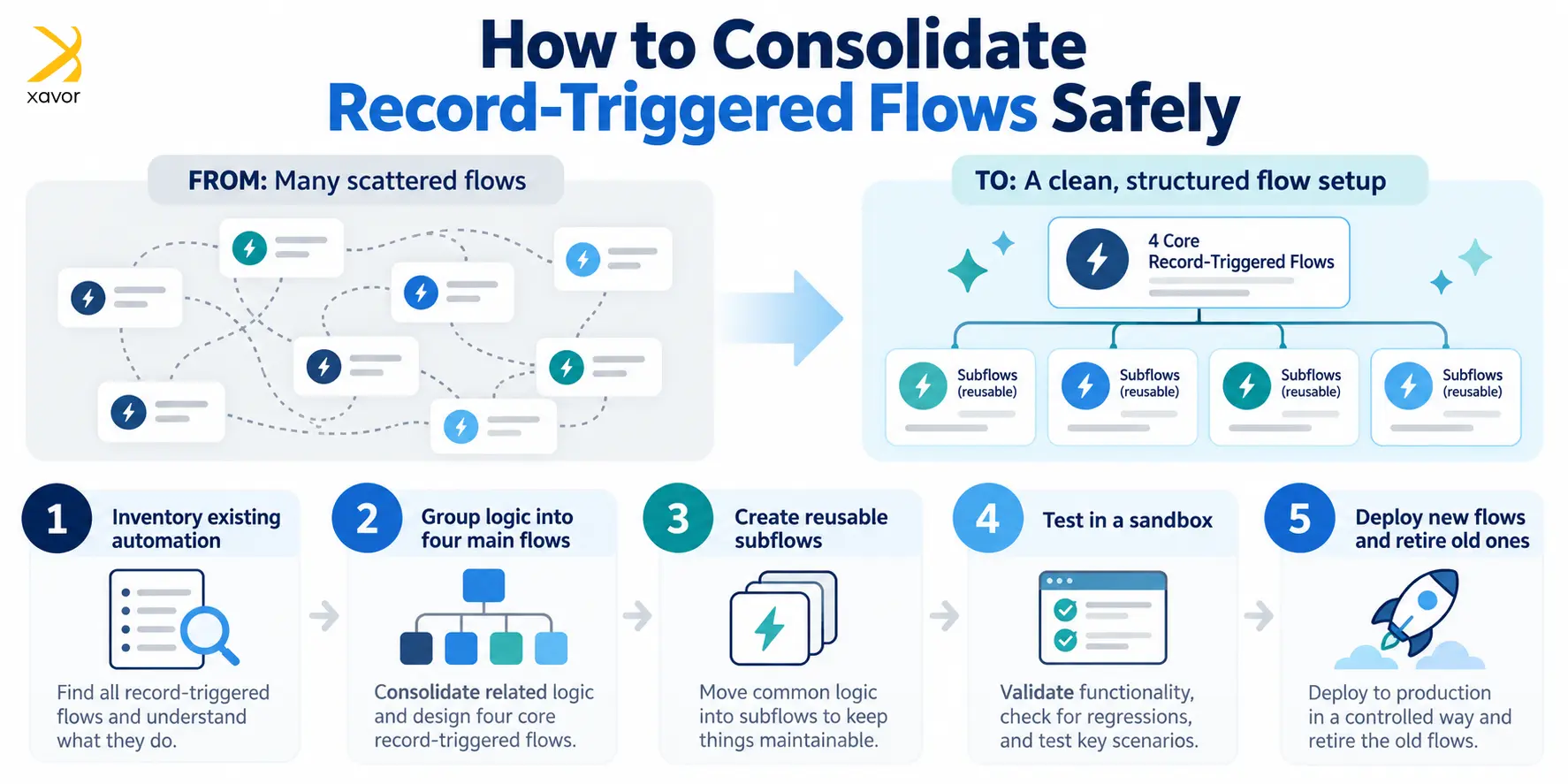
Consolidating record-triggered flows requires administrators to understand existing behavior before replacing it. The safest approach is to inventory current automation, define where each business rule belongs, rebuild in a sandbox, and test the replacement against documented requirements. Before restructuring automation, administrators should also consider how their Salesforce implementation aligns with business processes, since the existing flows may reflect requirements that have changed over time.
1. Inventory the existing automation
Start by opening Flow Trigger Explorer and selecting the object you want to review.
Record every active flow, including its trigger conditions, fields modified, and dependencies. Also inspect Apex triggers and any remaining legacy automation.
Pay particular attention to business rules that modify the same fields.
2. Group the logic into the four main flows
Classify each requirement according to when it runs and what records it needs to modify.
For example, assign a same-record priority calculation to the appropriate before-save flow. Move related-record creation to an after-save flow.
During this review, identify duplicated checks and business rules that no longer apply.
3. Create subflows for repeated operations
Extract reusable business operations into autolaunched subflows.
Give each subflow a descriptive name and document its expected inputs. Keep the main after-save flows focused on deciding which operation should run.
4. Test the replacement in a sandbox
Salesforce recommends using sandboxes for flow testing so administrators can inspect behavior without unintentionally changing production data.
Test new records, updates that meet entry conditions, and updates that should produce no additional actions. Include bulk imports, integration-driven changes, permissions, and error handling.
Salesforce’s flow testing documentation describes test scenarios, assertions, and troubleshooting options.
5. Deploy the new flows and retire the old ones
Plan the cutover so old and replacement automation do not perform the same operation simultaneously.
Validate production behavior after deployment and retain recoverable versions during the agreed rollback period. Once the new configuration is stable, retire obsolete flows according to your organization’s change-management policy.
When flow consolidation makes sense
Flow consolidation is worth considering when administrators frequently investigate conflicting field updates, maintain duplicated business rules, or spend excessive time understanding dependencies between flows.
However, an object containing two straightforward flows may already have an appropriate structure.
Salesforce also allows administrators to maintain multiple ordered record-triggered flows. That can be useful when separate business functions have clearly defined ownership and independent requirements.
The decision should therefore depend on maintainability, execution dependencies, and testing effort rather than a fixed flow count.
For more guidance on maintaining CRM automation, see Xavor’s article on Salesforce workflow best practices.
Keep Salesforce Flow Builder manageable as automation grows
A consistent approach to Salesforce Flow Builder makes it easier for admins to understand which automation runs, where a business rule belongs, and how a change might affect existing processes.
The four-flow architecture described above provides one way to organize that responsibility, particularly for objects with many overlapping record-triggered flows.
If your Salesforce admins are spending too much time investigating automation conflicts, Xavor can help assess the current configuration and identify opportunities for consolidation. Explore our Salesforce development services or contact [email protected] to discuss an automation review.

FAQs
Salesforce admins should use precise entry conditions, handle same-record field changes in before-save flows when appropriate, and maintain reusable logic through subflows. They should also document execution dependencies and test automation before deployment.
A record-triggered flow is an automation that runs when a Salesforce record is created, updated, or deleted, depending on its configured trigger. It executes supported actions when the specified conditions are satisfied.
Salesforce flow limits are restrictions on the resources automation can consume, including database operations and transaction processing. The applicable limits depend on the execution context and resources shared with other automation.