

ServiceNow has more than one way to deploy applications. But most developers prefer Update Sets to move their changes to the platform. Everything in ServiceNow is first developed in a sandbox and then moved to the actual test or production environment.
However, it works a bit differently from a traditional codebase. There, you can deliver a custom workflow or UI policy update with a Git Push. However, ServiceNow stores configuration as database records, which are called Update Sets. Managing these configurations across environments without breaking live workflows is exactly why enterprises invest in specialized ServiceNow development services.
In this blog, we’ll explain how to use Update Sets properly to implement your updates. And we’ll also compare Update Sets with other deployment options to see why they are so popular.
What is an Update Set?
An Update Set is a record in the sys_update_set table that acts as a container for your configuration changes. It is practically an XML file. When an Update Set is active, every configuration record you save gets captured automatically as an Update XML entry in sys_update_xml.
That entry stores the full XML of whatever changed, whether it is a business rule, a form layout, an ACL, or a script include.
Every instance has a Default Update Set active out of the box. Do not work in it. Create a named Update Set for every ticket or story you work on. One Update Set per piece of work keeps things clean and traceable.
How to create and deploy Update Sets in ServiceNow
You need to login as an administrator to create an Update Set. Once you’re in, follow the steps below.
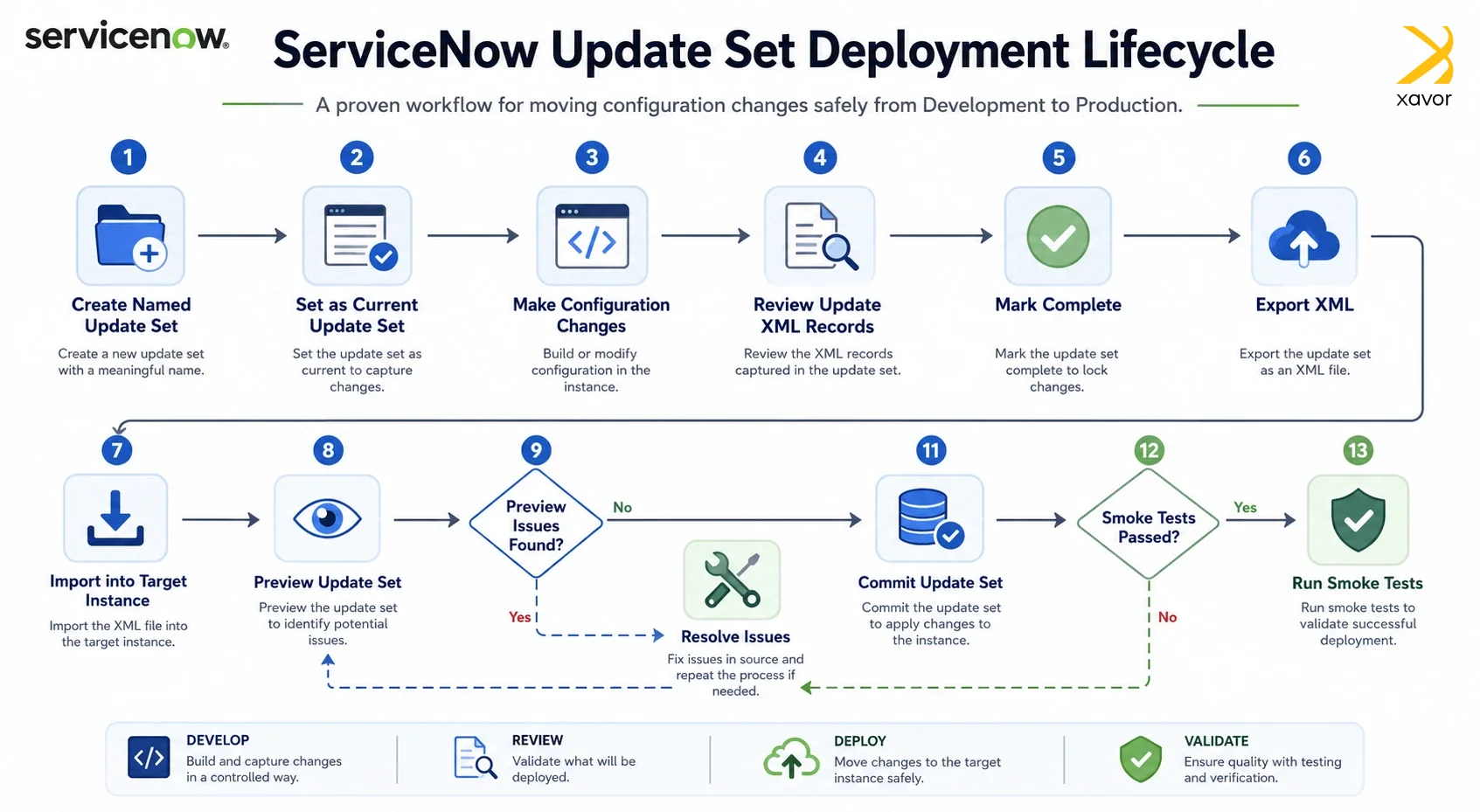
1. Create a named update set
Go to System Update Sets, then Local Update Sets and create a new record. Name it after the ticket it belongs to, something like PROJ-1234_email_fix. Once created, set it as your Current Update Set. You will see the name show up in the instance banner confirming it is active.
2. Make your changes
Work normally. Every configuration record you save while your Update Set is active is captured automatically. You do not need to add anything manually. The only things that do not get captured are data records and certain system settings, covered in the next section.
3. Review the contents
Before marking the Update Set as Complete, open it and look at the Update XML records inside. Because capture is automatic, it is easy to accidentally include changes you did not intend to ship. If you opened a business rule just to read it and hit Save out of habit, that record is now in your set. Remove anything that should not be there.
4. Mark complete and export
Change the Update Set status to Complete and export it as an XML file. This file is what you will carry to the target instance.
5. Import into the target
In the target instance, go to System Update Sets then Retrieved Update Sets and upload the XML file. This loads the Update Set into the instance but does not apply it. The status will show as Loaded.
6. Preview
Open the retrieved Update Set and click Preview Update Set. ServiceNow will compare every record in the set against the target and flag anything that needs attention. Read through all of it. Do not move forward until you have dealt with every problem that comes up.
7. Commit
Once the preview is clean, click Commit Update Set. The changes are now live. Run your smoke tests right after and confirm the functionality works before you close out the deployment.
What gets captured and what does not
Update Sets capture configurations instead of data. This distinction is what catches most developers off guard early on.
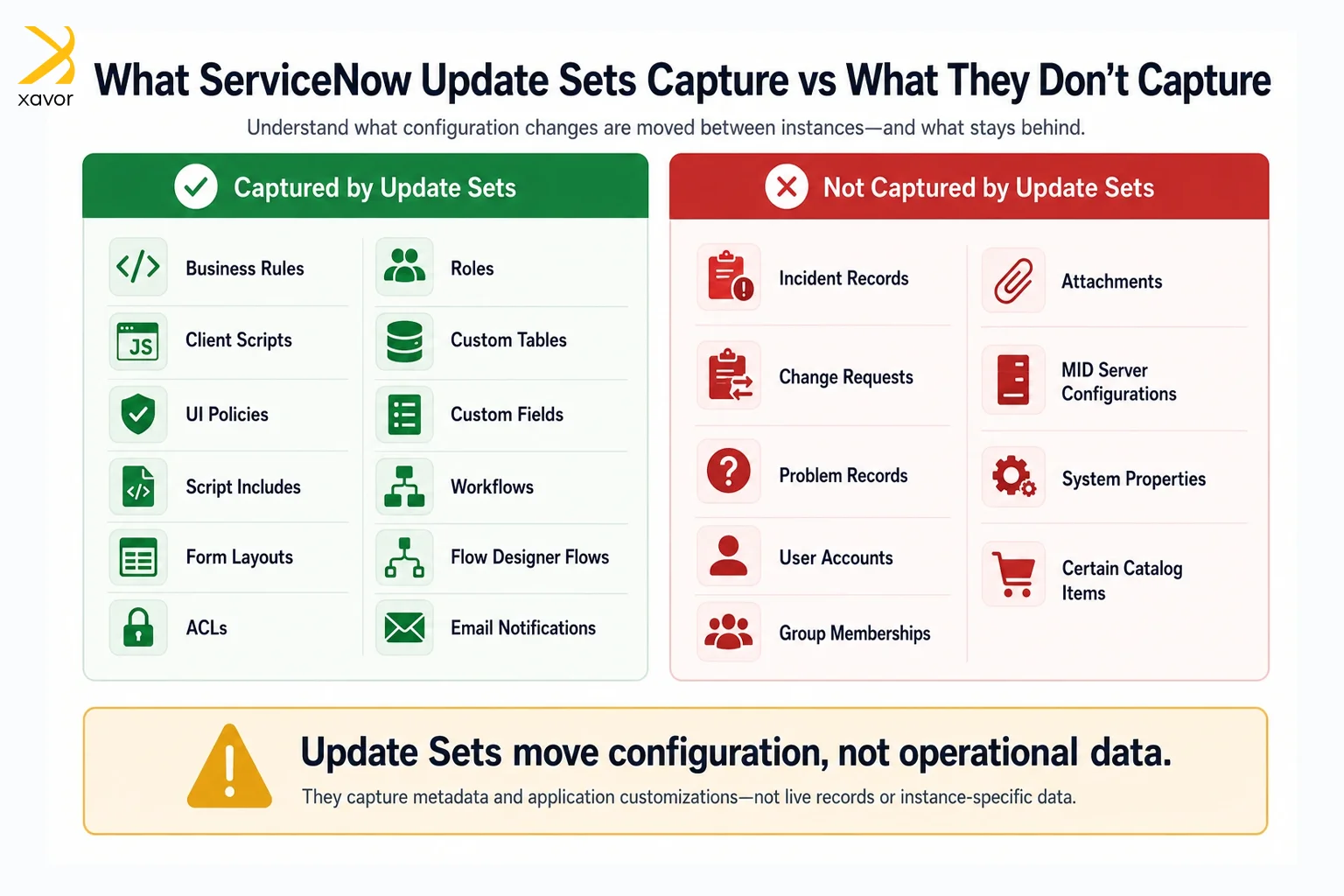
What is captured:
- Business Rules, Client Scripts, UI Policies, and UI Actions
- Script Includes and Scheduled Script Executions
- Form layouts and dictionary entries
- Workflows and Flow Designer flows
- ACLs and Role definitions
- Application menus and other modules
- Custom tables and fields
- Email notifications and templates
What is not captured:
- Transactional records like Incidents, Problems, Changes, and Tasks
- User accounts and group memberships
- Attachments
- MID Server configurations
- System properties (verify these manually after every deployment)
- Catalog items behave inconsistently. always test after transport
Best practices to use ServiceNow Update Sets
Update Sets are not always easy to work with. Some new ServiceNow developers find them more difficult than other options. But the structure they provide for deployments is the most optimal.
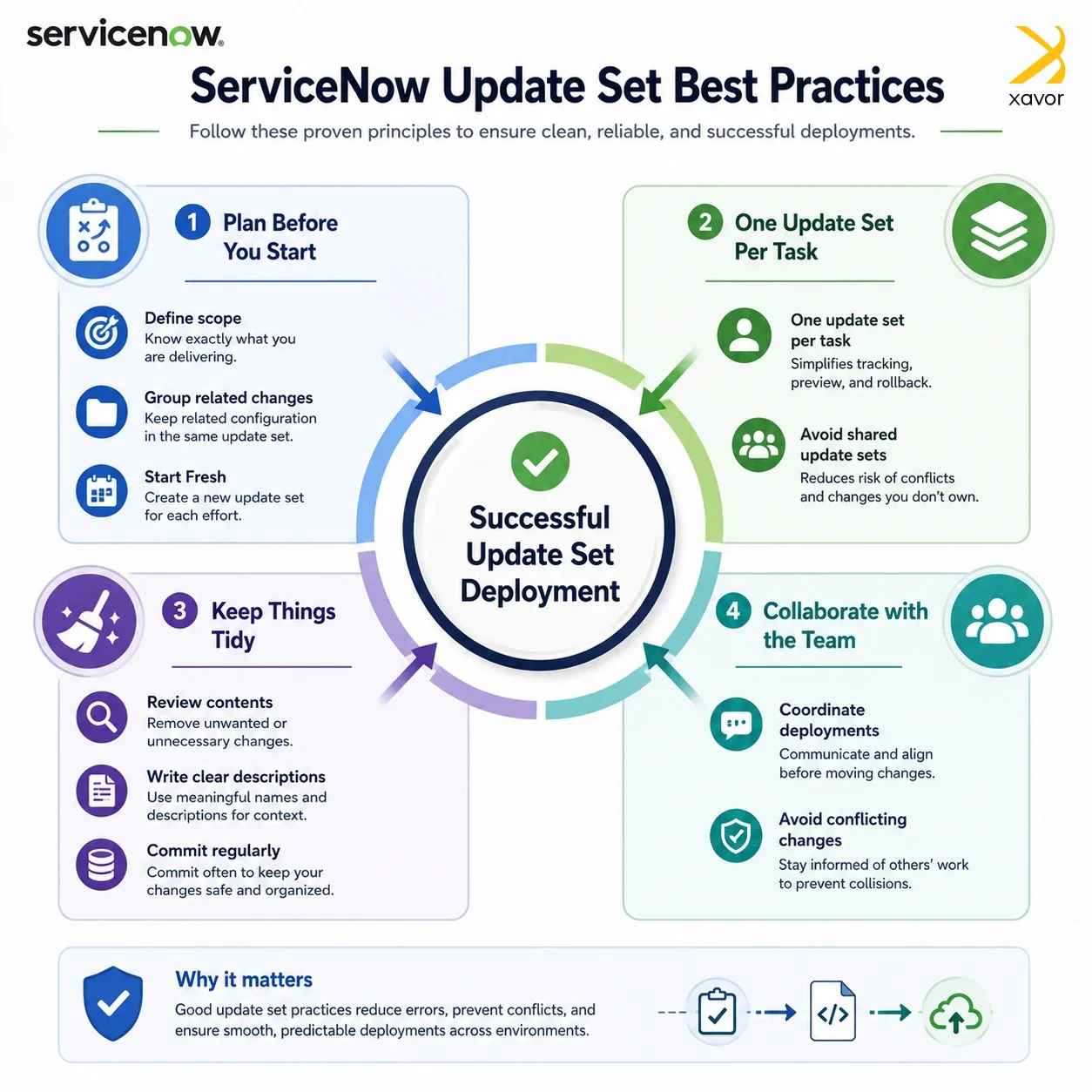
So, follow these best practices to move changes using Update Sets if you’re also struggling to manage them.
1. Plan before you start
Before you even open ServiceNow, know what you’re trying to change. Jumping in without a plan is like packing a moving box with random items. You’ll end up with a mess that’s hard to unpack later.
Group your changes sensibly. If you’re building a new approval workflow, keep all its pieces in one Update Set. Don’t mix it with unrelated work like a UI fix for a different team.
Logical grouping makes it easier to understand and review, which helps undo if something goes wrong.
2. Start fresh
Always start with a fresh Update Set, ideally empty. Working inside an existing or shared Update Set risks accidentally bundling someone else’s changes with yours.
Therefore, add changes as you go. It will give you a clean trail of what changed and when. On the contrary, doing everything at once in the end makes it much harder to roll back a specific change if it causes a problem.
3. Keep things tidy
Save your work often by committing changes regularly. Think of this like hitting Save on a Word document. It protects you from losing hours of work if something unexpectedly breaks.
Moreover, write good descriptions. A note like “Fixed incident form, added priority field for VIP users” is far more useful than “Update Set 47” when someone needs to understand what’s inside weeks later. It could be your future self as well.
4. Collaborate with the team
Always coordinate who is doing what when multiple developers are working simultaneously. Two people can overwrite each other’s work if they change the same thing in different Update Sets and try to apply them in the wrong order.
Common preview problems in Update Sets
ServiceNow runs a preview before it commits your Update Set to the target environment. It’s essentially a dry run that scans for anything that could go wrong. apply anything yet. It just looks ahead and raises flags. These three errors are the flags it raises most often.
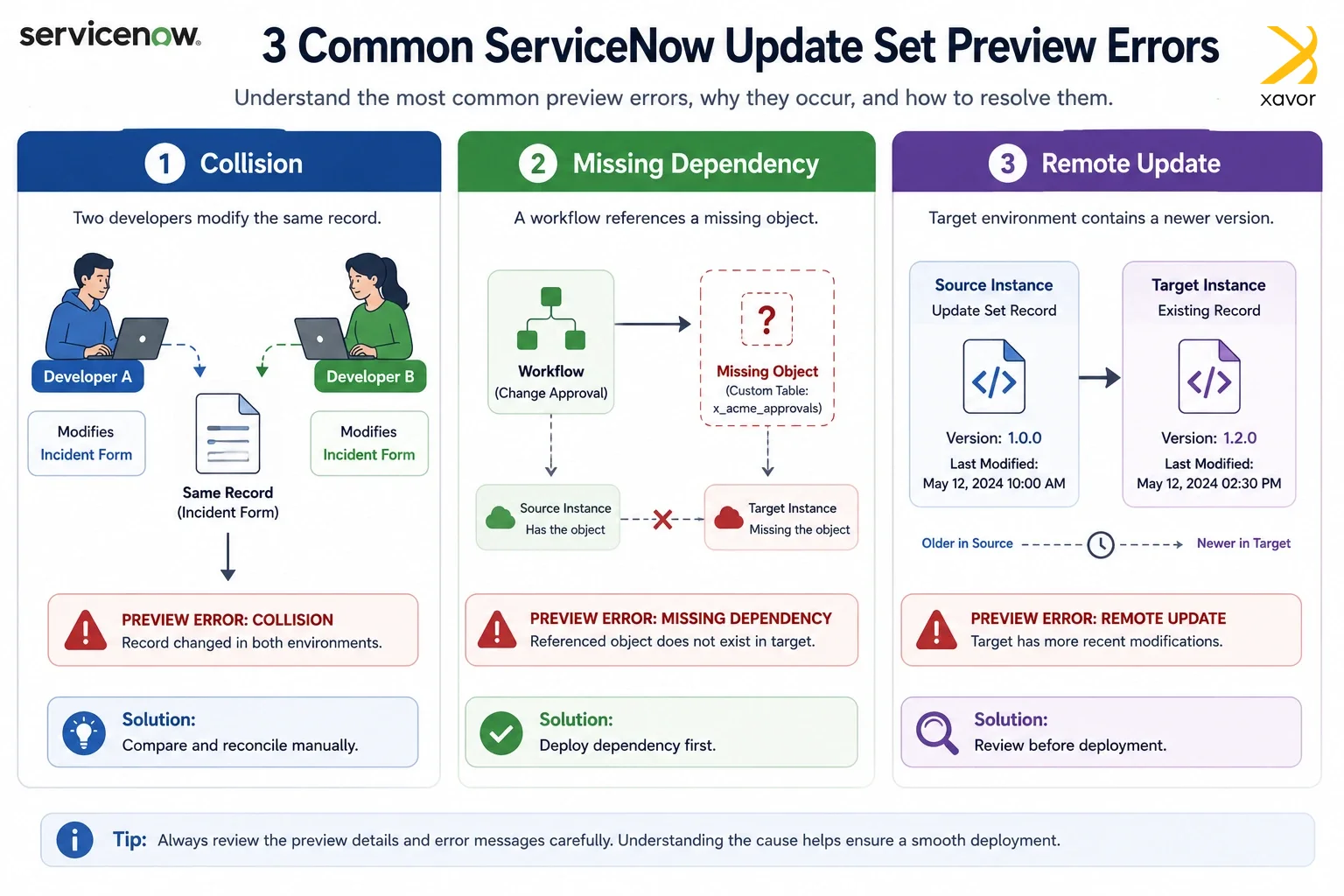
1. Collision
The record you are updating was also changed in the target after your dev instance last synced with it. ServiceNow shows you both versions and you decide which one wins. Do not just click through this. If someone made a deliberate fix in the target and you overwrite it without reading it, their work is gone. Compare both versions and manually reconcile the changes if needed.
2. Missing Dependency
Your Update Set references something that does not exist in the target yet. A script include, a custom table, a catalog item that was never transported. Get the dependency into the target first and then re-run the preview. Never ignore this error.
3. Remote Update
The record in the target was updated more recently than the version in your Update Set. It is not a blocker but it is worth reviewing, especially when deploying to production. It is a common sign that someone made a direct change in prod, which is a habit worth discouraging on your team.
Working with multiple Update Sets
When several Update Sets need to reach the target together you have two options.
Merging: Use Merge Update Sets from the list view to combine multiple completed sets into one. If two sets both contain changes to the same record, the set listed last in the merge order wins. Order matters, so document it in your change ticket before you merge.
Sequential commits: Import each Update Set into the target and commit them one at a time in the correct dependency order. More steps but more control. Use this when the dependency chain is complex or when you need to verify each piece before moving to the next.
Mistakes that break production
- Working in the wrong Update Set: If you forget to switch your active Update Set, your changes land somewhere else entirely. Check the Update Set shown in the instance banner before touching any configuration. Make it a reflex.
- Skipping the preview: You can commit without previewing. Do not. A preview takes five minutes. Debugging a broken production instance takes much longer and the fallout extends beyond just your time.
- Shipping unintended records: Capture is automatic, which means anything you accidentally save goes into the set. Review the Update XML records before marking the set Complete every single time. Remove anything that was not part of the work.
- Circular dependencies: Update Set A needs something from Update Set B and Update Set B needs something from Update Set A. Neither previews cleanly. This usually happens when two developers work on related changes in parallel without talking to each other. Merge both sets into one and deploy together.
Conclusion
Update sets are foundational to ServiceNow configuration management. A good Update Set process helps developers move ServiceNow changes safely without losing control of what is being deployed.
Before committing anything, always review the captured records, preview the ServiceNow Update Sets, and fix any issues properly. When Update Sets are kept small, clean, and tied to a specific task, deployments become easier to track, test, and trust.
Partner with Xavor if you want to professionally implement changes across your ServiceNow instance. Contact us at [email protected] to book a free consultation session.

FAQs
Yes, You can merge multiple completed update sets into a single set to simplify your migration process. This helps resolve conflicts and ensures all related changes transport to the target instance simultaneously.
Backing out an update set reverses all configuration changes made by that specific set. The system automatically restores the previous versions of the affected files, but it will not delete newly created tables or fields.
You can resolve collisions by opening the preview error log in the target instance. ServiceNow highlights the conflicting changes and allows you to manually choose which version to accept or skip.