

When a Service Level Agreement (SLA) fails to trigger in ServiceNow, the cause is rarely obvious. It almost arrives without warning every time. We run into this issue quite often ourselves, and it is one of our pet peeves as ServiceNow admins. Even when everything appears to be in order, an SLA turns out is not to be attached to an incident.
On the surface, the ticket looks fine. It’s created successfully, the priority is there, the assignment group is set, and nothing seems obviously wrong. But the SLA simply does not attach.
So, where is the problem? ServiceNow consulting services routinely deal with this issue in real production environments. Especially when there are multiple SLA definitions, existing workflows, and several configuration layers already in place.
In this article, we’re sharing the same step-by-step troubleshooting approach we used to identify the cause and fix the issue safely without making random changes in production.
Understanding SLAs in ServiceNow
An SLA in ServiceNow is a time-bound commitment between the client and the service provider. It defines the conditions and standards of the services offered. And all the configurations, workflows, and schedules are built around enforcing the SLA.
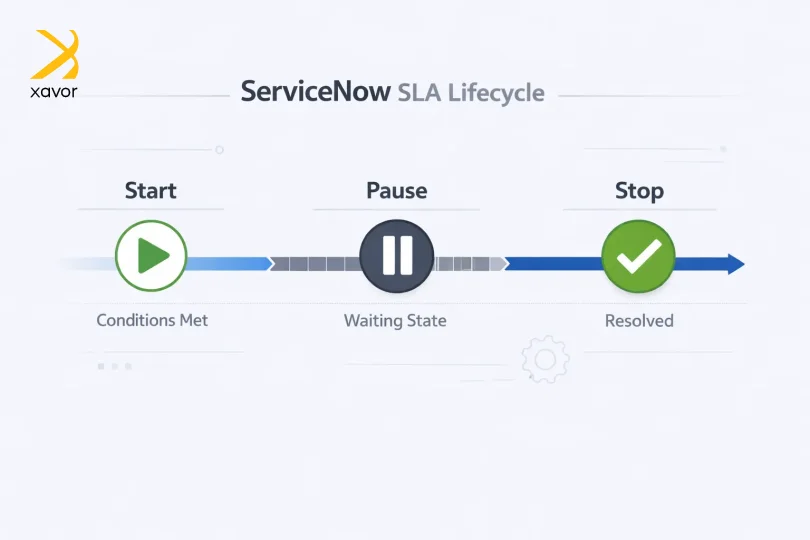
However, SLAs don’t automatically apply to every record. They come with conditions that you set about when the SLA will begin, pause, or end:
- Start conditions: What triggers the SLA?
- Stop conditions: When will it be completed?
- Pause conditions: When does the clock pause?
ServiceNow evaluates these conditions precisely. If the start condition is not met exactly as defined, the SLA will not attach. Now, there are different types of SLAs in ServiceNow, one of which is an SLA for an Incident.
Incident in ServiceNow is a ticket for something that has gone wrong, and someone needs it fixed.
Maybe a user cannot log in, or a server is down. An application is throwing errors. Whatever the problem, when it gets reported, ServiceNow creates an Incident record to track it from start to finish.
SLAs for Incident Management define how quickly the issue should be handled. They are used to measure whether the support team is meeting expected response and resolution targets for incident tickets.
What the issue looked like
In our case, the Incident was being created correctly, and the important fields were populated as expected. Even so, the SLA was not attached automatically. Because of that, the SLA timer never started, which meant the ticket could move closer to breach without any proper tracking.
When this happens, the cause is usually one of a few common configuration issues, such as the SLA condition may not match the record.
- The start condition may be too specific
- Definition may be inactive
- Wrong table may be selected
- The schedule may be missing
- Another SLA may already be taking precedence.
Instead of guessing, the safest way to handle it is to check each part one by one.
Start with the SLA definition
The first thing we usually check is the SLA definition itself.
Go to:-
SLA definition → Task SLA → SLA definitions
Open the SLA that is supposed to attach and review the basics carefully. Make sure the SLA is active, confirm that the table is set to Incident, check that the start condition is correct, and review the stop and pause conditions as well. It is also important to confirm that a schedule has been assigned.
A surprisingly common mistake is having the table set to Task instead of Incident. When that happens, the SLA may look correct at first glance, but it will not behave the way you expect on Incident records.
Double-check the start condition
This is one of the most common places where the problem turns up.
For example, if the SLA is supposed to start only when the priority is 1 and the assignment group is Network, then the Incident has to match those values exactly. Even a small mismatch is enough to stop the SLA from attaching.
What helped us most in these situations was not relying on assumptions. We would open the actual Incident, compare the field values directly with the SLA condition, and confirm that both sides matched exactly. Many times, the issue was hidden in a condition that looked correct but did not line up with the actual record.
Use SLA debug
SLA Debug is one of the most useful tools for this type of issue, but it is often overlooked.
To use it, open the Incident, add sla_debug=true to the URL, and then reload the form. After that, check the logs to see how the SLA engine evaluated the record and why the SLA did not attach.
This step saved us a lot of time in production. Instead of guessing which condition was failing, the debug output pointed our team in the right direction much faster.
See whether another SLA attached first
Sometimes the issue is not that the SLA isn’t attached. The real issue is that a different SLA was attached first.
To verify that, check the Task SLA related list on the Incident. If another SLA is already there, review its conditions and order. In some cases, the correct SLA does not get a chance to attach because another one is evaluated first and takes priority.
When that happens, you may need to review the SLA order, adjust the condition, or check whether the retroactive setting is affecting the behavior.
This is especially important in environments where several SLAs exist for different teams, priorities, or service types.
Review the schedule and time zone
Another area worth checking is the schedule.
If the schedule is empty, incorrect, or not aligned with the expected business hours, the SLA may not start as intended. We usually review the assigned schedule, the time zone, and the defined working hours together because a problem in any one of these can affect the SLA timer.
Moreover, we once saw a case where everything else was configured correctly, but the SLA was still not running because no schedule had been assigned. The issue looked more complex than it actually was.
Look at recent changes
If the SLA was working before and suddenly stopped, it’s better not to stop with the definition alone. At that point, it is important to look at what changed recently.
That includes checking recent update sets, any modifications made to the SLA definition, related business rules, and Flow Designer changes. In production, even a small update can affect how an SLA is evaluated.
When troubleshooting, it helps to think not only about what the SLA should do, but also about what may have changed around it.
Key learning for administrators
The biggest lesson for us from this episode was that SLA issues are usually caused by configuration problems, not platform bugs.
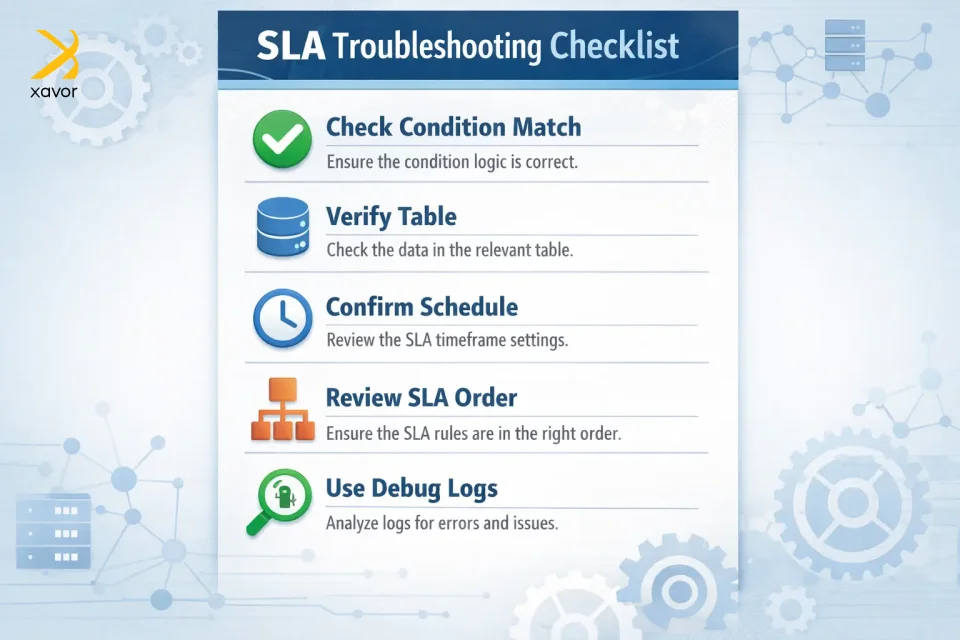
Because of that, we learned to avoid making direct changes in production without first testing in Dev or QA. A structured review is always safer. Therefore, it’s now a rule of thumb that we usually verify the condition, the table, the schedule, the order, and the debug output before deciding on any fix.
That approach reduces risk and makes troubleshooting much more reliable.
Conclusion
ServiceNow provides enough tools to troubleshoot common issues in its ecosystem. But still, it can’t provide ready-made solutions for every nuisance that may come from time to time. ServiceNow admins need to know all the tricks and workarounds to tackle these common issues.
An SLA not triggering in ServiceNow is a common issue, but it becomes much easier to handle when you approach it methodically.
The best results often come from checking the configuration step by step rather than changing things based on guesswork. In production environments, especially, that discipline matters. A careful troubleshooting process not only solves the immediate issue but also helps avoid creating new ones.
For anyone working in ITSM, learning how to troubleshoot SLA behavior properly can save a lot of time during go-live support and day-to-day administration.
Xavor provides professional ServiceNow consulting services to solve roadblocks like these in ServiceNow implementation and regular upkeep. Contact us at [email protected] to book a free consultation session.

FAQs
The three main types of SLAs are customer-based, service-based, and multi-level SLAs. A customer-based SLA covers all services for one customer, a service-based SLA applies one standard to all users of a service, and a multi-level SLA combines different terms for the organization, customer, and service level.
In ServiceNow, an SLA is used to track and enforce agreed response and resolution times for tickets and service requests. It helps teams monitor deadlines, measure performance, and ensure support is delivered within the promised timeframes.
In ServiceNow, the two core SLA record types are SLA Definitions (Contract SLA) and Task SLAs. SLA Definitions set the rules, timings, and conditions, while Task SLAs are the live records attached to individual tickets to track actual response or resolution performance.